
The WHEA_UNCORRECTABLE_ERROR (stop code 0x0000124) is one of the more serious blue screens Windows can throw. It means the system detected a hardware fault severe enough to force an immediate shutdown. Unlike most BSODs, it won't go away until the underlying hardware problem is resolved. If your storage drive is involved, professional hard drive data recovery may be the only way to retrieve your files.
What is the WHEA uncorrectable error?
The WHEA_UNCORRECTABLE_ERROR is a Windows stop code (0x0000124) triggered when the Windows Hardware Error Architecture (aka, WHEA) detects a critical hardware fault that the operating system cannot correct and cannot safely ignore.
The WHEA framework is built into Windows and continuously monitors hardware components for faults. When it detects an error severe enough to risk system stability or data integrity, it forces an immediate shutdown and displays the blue screen rather than allowing the system to continue running in a damaged state.
You will typically see this message on screen:
"Your PC ran into a problem and needs to restart. We're just collecting some error info, and then we'll restart for you. Stop code: WHEA_UNCORRECTABLE_ERROR"
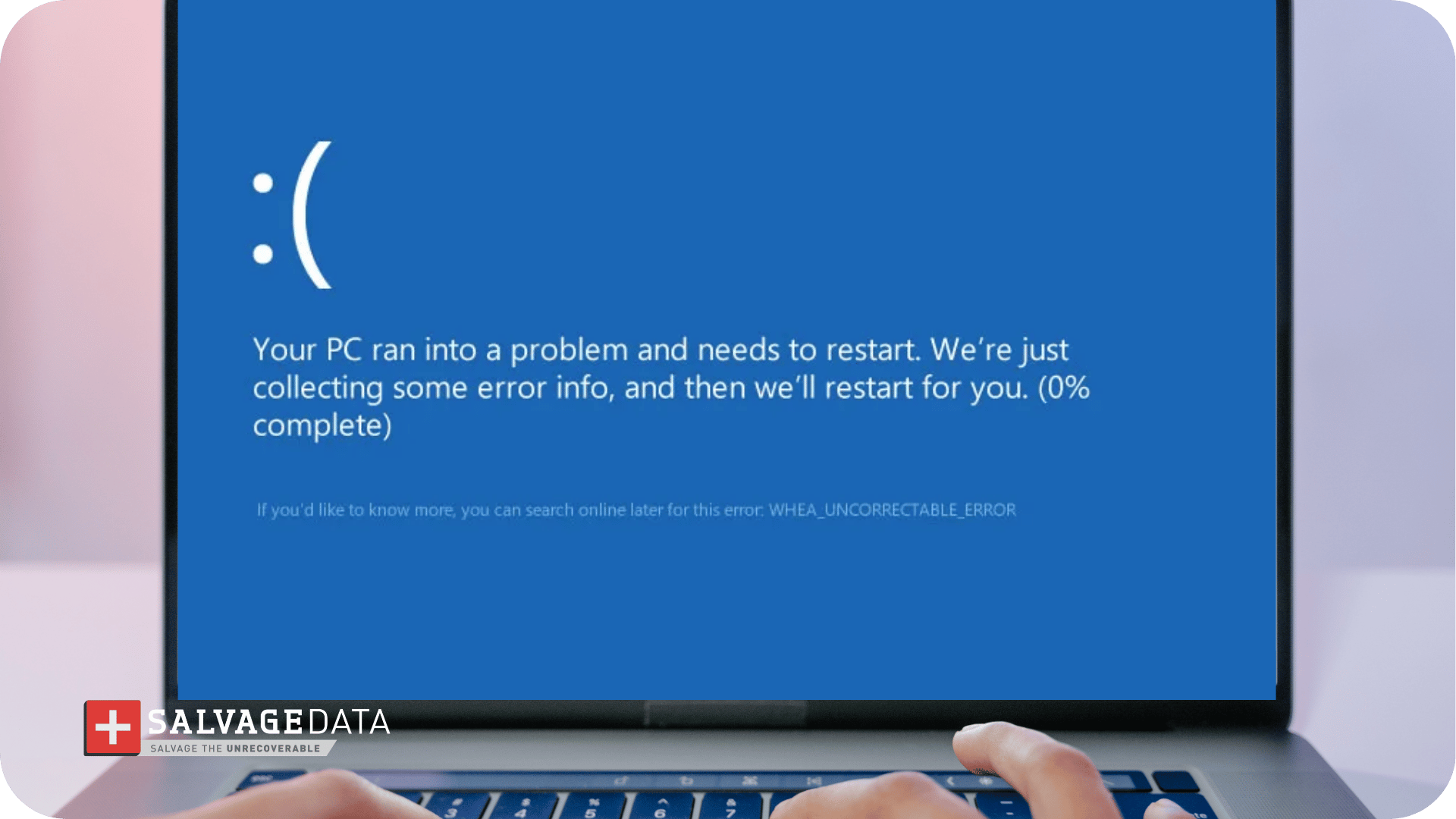
The error can occur during normal use, while gaming, at startup, or even during shutdown. Its timing and frequency often help identify which component is involved.
For context on other critical Windows stop codes that signal hardware trouble, see SalvageData's guide to fatal device hardware error, a closely related BSOD with overlapping causes.
Is the WHEA uncorrectable error dangerous?
Yes. This error indicates a critical hardware problem that can lead to data loss, drive failure, or further system damage if not addressed promptly.
Every crash forces an abrupt write interruption on your storage drive. On a drive that is already mechanically compromised, each forced shutdown increases the risk of unrecoverable data loss. Repeated crashes do not just inconvenience you. They degrade the hardware progressively.
What causes the WHEA uncorrectable error?
The WHEA uncorrectable error originates from a hardware fault detected anywhere in the system stack, including the CPU, RAM, storage drive, GPU, motherboard, or power supply.
Because WHEA monitors the entire hardware stack, the stop code alone does not tell you which component failed. The causes below are ordered by frequency based on field reports from data recovery engineers.
Failing or damaged hardware
Defective components are the most frequent cause of WHEA errors. Hard drives, SSDs, RAM modules, CPUs, GPUs, and motherboards can all trigger stop code 0x0000124 when they begin to malfunction. Components degrade over time, especially when exposed to heat, power surges, or physical shock. A full breakdown of the causes of storage component failure is covered in SalvageData's guide to common causes of hard drive failure.
Overclocking instability
Overclocking pushes a component beyond its factory-set clock speed, which increases heat output, power consumption, and instability, all of which WHEA interprets as hardware faults.
Incorrect voltage settings, unstable clock speeds, and aggressive overclocking profiles are among the most commonly reported triggers. If you have overclocked your CPU, GPU, or RAM, this is the first variable to eliminate.
Overheating
When CPU or GPU temperatures exceed safe operating thresholds, the system may trigger a WHEA error to prevent thermal damage before the component fails permanently.
Overheating results from dust buildup in cooling systems, failing fans, dried thermal paste, or inadequate airflow inside the case. A
Outdated or corrupted drivers
Device drivers act as the bridge between your operating system and hardware. A corrupted or incompatible driver causes the hardware to behave unpredictably, which WHEA registers as a hardware fault.
This is particularly common after a Windows update or after installing new hardware without updating the corresponding driver. Chipset drivers and GPU drivers are the most frequent offenders.
Power supply issues
An unstable or failing power supply unit (PSU) delivers inconsistent voltage to components, causing intermittent hardware errors across the entire system.
This is especially problematic for high-performance systems with demanding GPUs or overclocked processors that require stable, sustained power delivery. PSU-related WHEA errors often appear under load: during gaming, rendering, or large file transfers.
Corrupted system files or BIOS misconfiguration
Damaged Windows system files, a corrupted Master Boot Record (MBR), or incorrect BIOS/UEFI settings can disrupt the operating system's communication with hardware, triggering WHEA stop codes.
BIOS misconfigurations often appear after a failed update or after manually adjusting voltage or timing settings without reverting them.
How to fix the WHEA uncorrectable error
Work through these 14 steps in order, starting with the least invasive. The sequence matters: running intensive repair tools on a failing drive before protecting your data can cause permanent loss.
1. Protect your data first
Before running any diagnostic or repair tool, back up your files.
- If your system still boots: Immediately back up your most important files to an external drive or cloud storage.
- If your system won't boot: Do not repeatedly attempt to force startup. Each failed boot attempt can worsen a failing drive. Instead, consider removing the storage drive and connecting it to a healthy computer as a secondary drive to extract your data.
- If you hear clicking, grinding, or any other unusual noises, stop using the drive immediately and contact a professional data recovery service.
"By the time most people call us, they've already rebooted the machine a dozen times trying to fix the error themselves," says Kyle Ciresi, HDD Recovery Engineer at SalvageData. "Every failed boot on a mechanically damaged drive is another chance for the read/write heads to scrape the platters. We've seen drives go from recoverable to unrecoverable in a single afternoon of troubleshooting."
2. Check for overheating
Enter your BIOS/UEFI settings during startup (typically by pressing F2, Delete, or F12) and navigate to the hardware monitor. A CPU temperature above 185°F / 85°C at idle indicates overheating is likely contributing to the error.
What to do if temperatures are elevated:
- Clean dust from fans, heatsinks, and air vents with compressed air
- Verify that all case and CPU fans are spinning properly
- Reapply thermal paste on the CPU if it has been more than 2-3 years since the last application
- Ensure your case has adequate front-to-rear airflow
Overheating is the most reversible cause on this list. Resolving it first rules out thermal stress before moving to more invasive steps.
3. Disable overclocking
Overclocking is the process of pushing a computer component beyond its factory-set clock speed to gain extra performance, at the cost of increased heat, power consumption, and potential instability.
If any component is overclocked, reset your BIOS to factory defaults before continuing. Overclocking-related instability accounts for a significant portion of WHEA errors on enthusiast builds.
Enter BIOS/UEFI during startup and look for "Load Optimized Defaults," "Reset to Default," or an equivalent option. Save changes and restart. Also, disable any overclocking software running inside Windows, such as MSI Afterburner or Intel XTU.
Important: The steps above can be attempted safely by most users. From Step 4 onward, fixes involve opening your computer case or modifying low-level system settings. If you are not comfortable handling internal components or firmware, contact us and talk to one of our technicians before continuing, especially if you suspect the drive is already failing.
4. Reseat hardware components
Loose physical connections can cause intermittent hardware errors that WHEA interprets as faults, even when the components themselves are undamaged.
Power off the computer, unplug it from the power source, and open the case. Carefully remove and firmly reseat the following:
- RAM modules (remove from DIMM slots completely, then reinsert until the retention clips click)
- GPU (remove from the PCIe slot, then reseat)
- Storage drive cables (both SATA data and power connectors)
- Any expansion cards
Warning: Ground yourself before touching internal components. If you are not comfortable opening the case, have a technician reseat the components for you.
5. Run Windows Memory Diagnostic
Faulty RAM is a common trigger for WHEA errors. Windows Memory Diagnostic is a built-in Windows tool that reboots your computer and tests your RAM modules for errors that could be causing crashes and instability.
Press Windows + S, type "Windows Memory Diagnostic," and select "Restart now and check for problems." Review the results after the system reboots.
For a more thorough test, use MemTest86, a free tool that boots from a USB drive and tests RAM independently of Windows. If MemTest86 finds errors, test each RAM stick individually to identify the faulty module.
6. Run CHKDSK to check your drive
CHKDSK (Check Disk) scans your storage drive for file system errors and bad sectors, and attempts to repair them automatically.
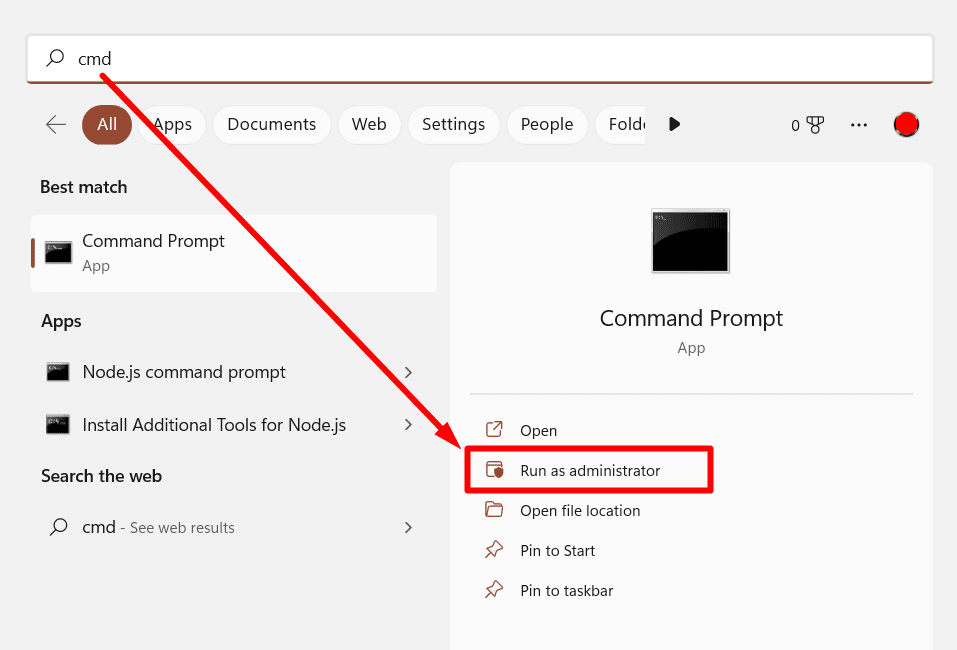
Open Command Prompt as Administrator and run:
chkdsk C: /f /r
The scan may take considerable time, depending on drive size. For a deeper understanding of what CHKDSK is finding, SalvageData's guide to bad blocks on a hard drive explains what bad sectors mean for your drive's remaining health.
Important: If CHKDSK reports a large number of bad sectors, the drive is likely failing. Stop running repair tools, back up your data immediately, and consider professional evaluation. For a proactive view of drive health beyond CHKDSK, see the guide to checking your hard drive health for monitoring tools that track S.M.A.R.T. data over time.
7. Update device drivers
Outdated or incompatible drivers are a frequently overlooked cause of WHEA errors, particularly after a Windows update or new hardware installation.
Open Device Manager (press Windows + X, then select Device Manager) and look for devices with yellow warning icons.
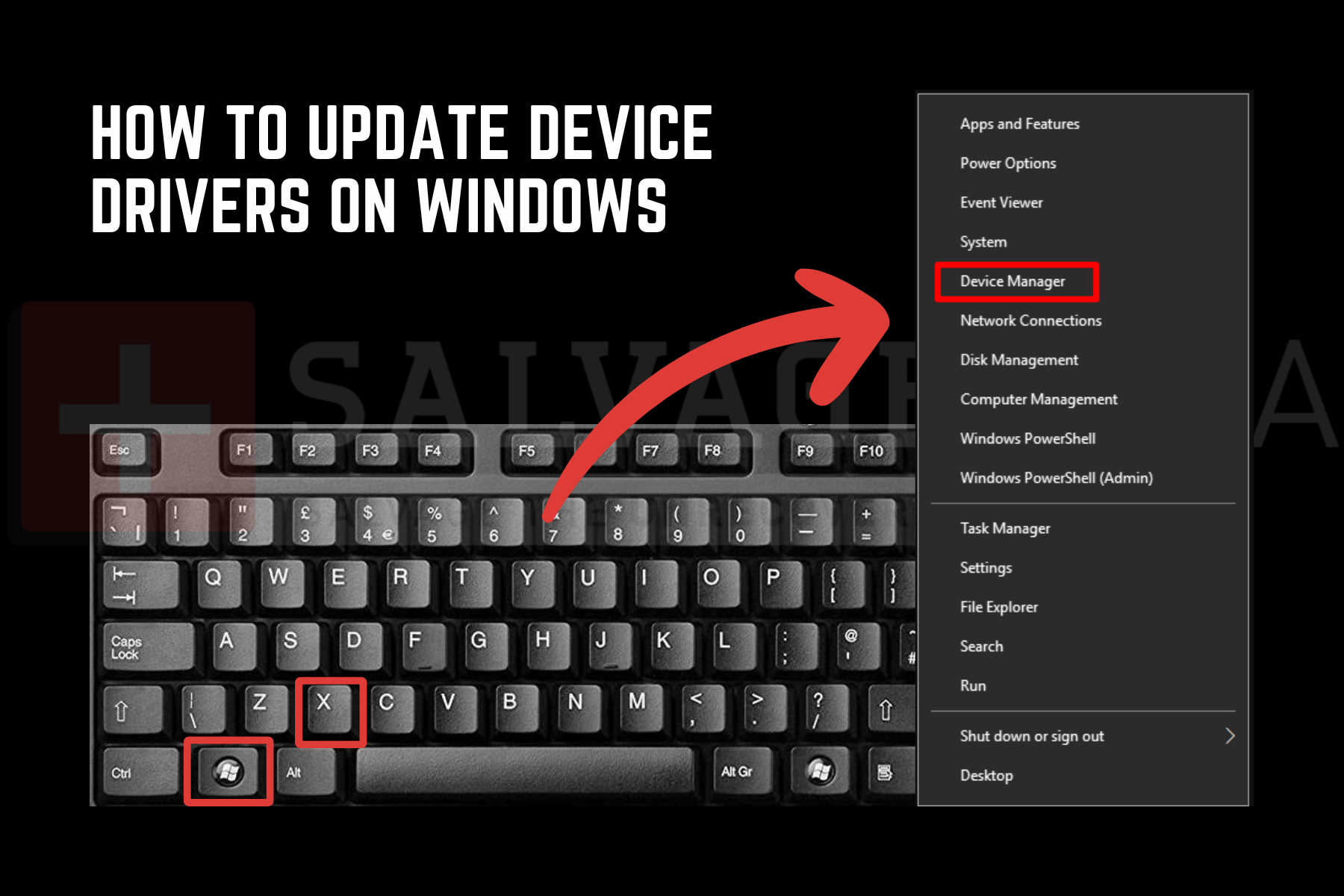
Right-click each one and select "Update driver."
Pay particular attention to:
- Chipset drivers
- GPU drivers
- Storage controller drivers
- Network adapter drivers
Visit your PC or motherboard manufacturer's website to download the latest driver packages directly; Windows Update does not always surface the most current versions.
8. Run System File Checker (SFC) and DISM
Corrupted Windows system files can interfere with hardware communication and trigger WHEA stop codes.
SFC scans and repairs corrupted files. DISM repairs the underlying Windows image that SFC draws from.
Open Command Prompt as Administrator and run this command:
sfc /scannow
If SFC reports issues it cannot repair, follow up with:
DISM /Online /Cleanup-Image /RestoreHealth
Then run sfc /scannow again to confirm the repairs took effect.
Important: From this point, the fixes carry a higher risk of data loss or hardware damage if performed incorrectly. If you are not comfortable with firmware updates or hardware diagnostics, you may want to request help from a technician before continuing.
9. Update or reset BIOS/UEFI
BIOS/UEFI is the firmware that initializes your hardware before Windows loads. Updating it patches known compatibility bugs; resetting it clears misconfigured settings that may be causing hardware faults.
Visit your motherboard or system manufacturer's support page to check for a BIOS update. If a more recent version is available, follow the manufacturer's flashing instructions precisely.
For a broader context on Windows stop errors rooted in firmware and driver conflicts, the guide to Windows stop error troubleshooting covers related diagnostic approaches.
Important: BIOS updates carry risk if interrupted. Do not proceed unless your system has stable power. If no update is available, reset to factory defaults using the 'Load Optimized Defaults' option described in Step 3.
10. Check the power supply
An unstable PSU can cause erratic behavior across all components, including WHEA stop codes that appear unrelated to the power system.
Signs of PSU involvement:
- Random shutdowns
- Crashes under heavy load
- Flickering system behavior
If you have access to a known-good PSU of the correct wattage, swap it in to test. Many computer repair shops will bench-test a PSU for a small fee.
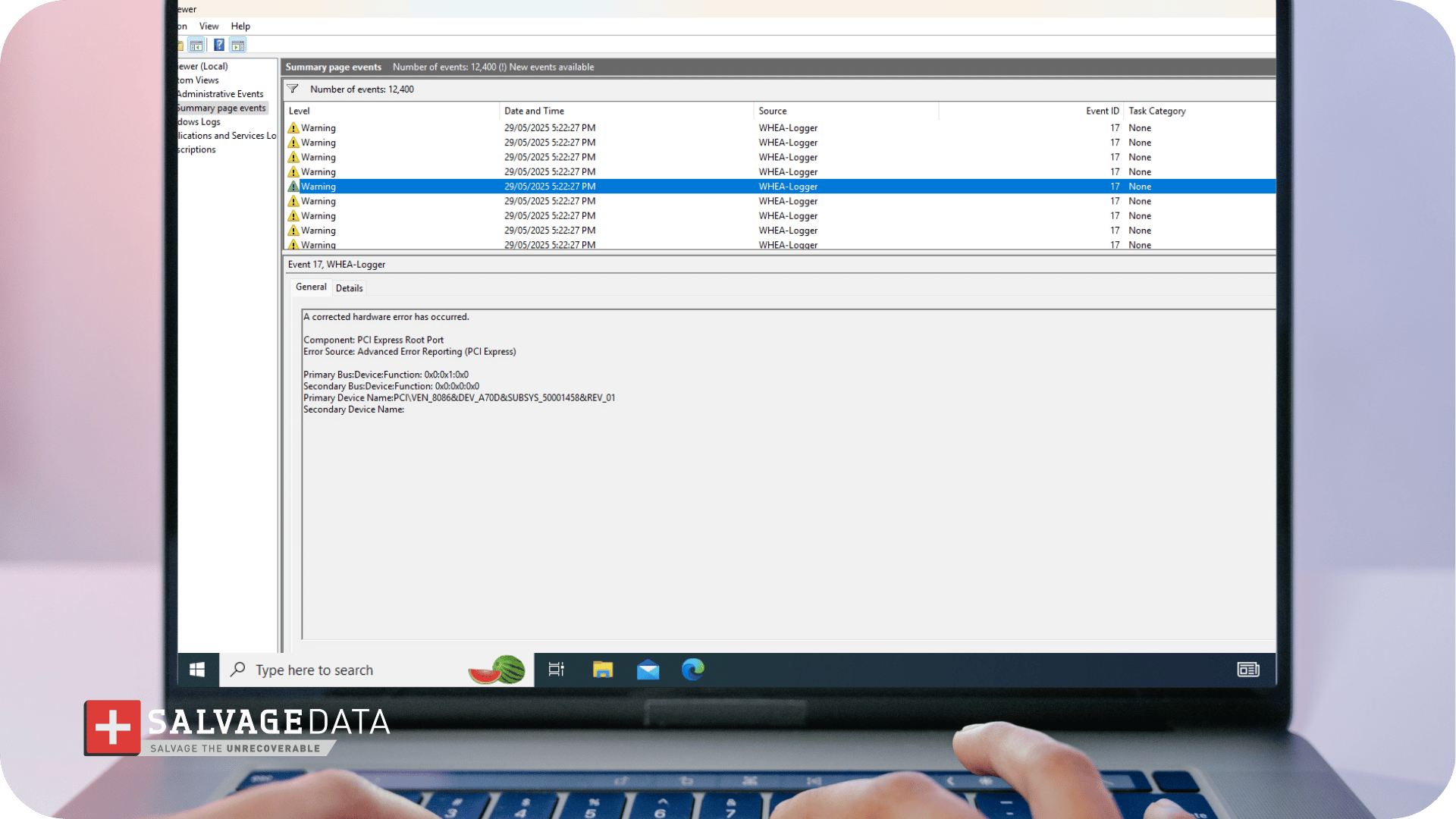
11. Use Event Viewer to identify the failing component
Event Viewer logs detailed hardware error records that identify which component reported the WHEA fault, allowing you to target your remaining troubleshooting precisely.
Open Event Viewer (search for it in the Start menu) and navigate to Windows Logs > System.
Filter or search for entries with "WHEA" as the source. These entries include component identifiers, error types, and timestamps that narrow down which piece of hardware is involved.
12. Perform a System Restore
System Restore reverts your system configuration (drivers, registry entries, and system files) to a previous snapshot without deleting personal files.
Use this step if the error started after a specific change, such as a Windows update, new software installation, or driver update.
Press Windows + S, type "Create a restore point," and click "System Restore." Select a restore point dated before the error first appeared.
System Restore does not affect your personal files, but it will remove applications installed after the selected restore point.
13. Reset or reinstall Windows
A Windows reinstall should be a last software resort, not an early step. If the drive is failing, reinstalling Windows can make data recovery significantly more difficult by overwriting recoverable sectors.
Back up all data first. Then go to Settings > System > Recovery and select "Reset this PC." You can choose to keep your personal files or perform a clean install.
Warning: Even the "Keep my files" option removes all installed applications. If you cannot boot into Windows, create a Windows installation USB on a separate computer and boot from it to access repair options.
14. Contact a data recovery service
If the WHEA uncorrectable error persists after completing all previous steps, you are most likely dealing with a physical hardware failure that software cannot fix.
Signs that it is time to stop troubleshooting and seek professional help:
- The error appears in Safe Mode or during recovery tools
- Your drive makes clicking, grinding, or buzzing sounds
- CHKDSK reports numerous bad sectors or fails to complete
- MemTest86 finds persistent memory errors across multiple passes
- The error recurs across multiple Windows installations
Continuing to run a system with failing hardware significantly increases the risk of permanent data loss. Before the drive degrades further, understanding the potential data recovery cost can help you weigh your options.
How to fix WHEA uncorrectable error on Windows 11
The WHEA_UNCORRECTABLE_ERROR occurs on Windows 11 for the same hardware-level reasons as Windows 10. The 14-step fix sequence above applies to both operating systems.
Windows 11 users should also check two additional items:
- Verify that your hardware meets Windows 11's TPM 2.0 and Secure Boot requirements. Systems running Windows 11 on marginally compatible hardware can experience increased instability.
- Windows 11 receives driver updates on a different cadence than Windows 10, so check Windows Update and your manufacturer's site separately for chipset and storage controller driver updates after any major Windows 11 feature update.
Protect your data before the next crash
The WHEA uncorrectable error signals a real hardware problem, not a random glitch. Start with the least invasive fixes. Always back up your files before running repair tools. And stop using the system immediately if you hear unusual sounds from the drive.
If you have worked through every troubleshooting step and the error keeps recurring, the safest next step is a professional evaluation before the hardware degrades further. Contact SalvageData for a free evaluation, or find an authorized data recovery center near you. Our 96.7% success rate and no-data-no-charge policy mean you only pay when we successfully recover your files.