

Key takeaways:
- If you're asking why your Lenovo laptop won’t turn on, it's usually caused by power issues, a drained battery, or a frozen system.
- Perform a hard reset by unplugging the charger, holding the power button for 30 seconds, then reconnecting power and trying again.
- If your Lenovo powers on but shows a black screen, it's likely a display or RAM problem, not a complete failure, and your data is probably still safe.
You press the power button on your Lenovo laptop, but nothing happens. No lights, no fan noise, no screen. Or maybe the power light flickers, but the display stays black. Either way, you're wondering: why won't my Lenovo laptop turn on? Fortunately, whether you have a ThinkPad, IdeaPad, Yoga, or Legion, the troubleshooting steps are similar. This guide walks you through 6 solutions, starting with the easiest fixes and moving to more advanced options.
Why won't my Lenovo laptop turn on?
Before jumping into fixes, it helps to understand what might be causing the problem. When a Lenovo laptop won't turn on, the issue usually falls into one of these categories:
- Power supply problems are the most common cause. A dead battery, faulty charger, or bad power outlet can all prevent your laptop from starting.
- Residual power buildup can freeze your system. This happens when an electrical charge gets stuck in the components, and a hard reset usually clears it.
- Software or firmware crashes can make your laptop unresponsive. Sometimes the system freezes during sleep mode or after a failed update.
- Hardware failures, such as a dead motherboard, a failed hard drive, or damaged RAM, can prevent your laptop from booting.
Solution 1. Check your power source and charger
Start with the basics. Many Lenovo laptops that won't turn on simply aren't getting power.
Check the charging indicator
When you plug in your Lenovo charger, look for the LED light near the charging port. If there's no light at all, the problem might be your charger or the outlet.
Inspect the charger and cable
Look for frayed wires, bent connectors, or burn marks on the adapter brick. Chargers wear out over time, especially near the plug ends where the cable bends repeatedly.
Try a different outlet
Plug the charger into a different wall socket, preferably in another room. Power strips and surge protectors can fail without obvious signs.
Test with a compatible charger
If you have access to another Lenovo charger with the same wattage, try it. Using a charger with lower wattage than your laptop requires can cause power issues. Lenovo's official support page recommends always using the original charger or an equivalent with matching specs.
If your charging light works and the battery shows a charge, but the laptop still won't turn on, move to the next solution.
Solution 2. Perform a hard reset to clear residual power
A hard reset (also called a power drain or static discharge) is often the fastest fix for a Lenovo laptop that won't turn on. This clears any residual electrical charge that might be preventing startup.
For Lenovo laptops with a removable battery:
- Unplug the charger from the laptop
- Remove the battery from the bottom of the laptop
- Press and hold the power button for 30 seconds
- Reinsert the battery
- Plug in the charger
- Press the power button to turn on the laptop
For Lenovo laptops with a built-in battery (most modern models):
- Unplug the charger
- Press and hold the power button for 30 seconds (some sources recommend 60 seconds)
- While still holding the power button, plug in the charger
- Release the power button and press it again normally
Using the Novo button (Lenovo-specific feature):
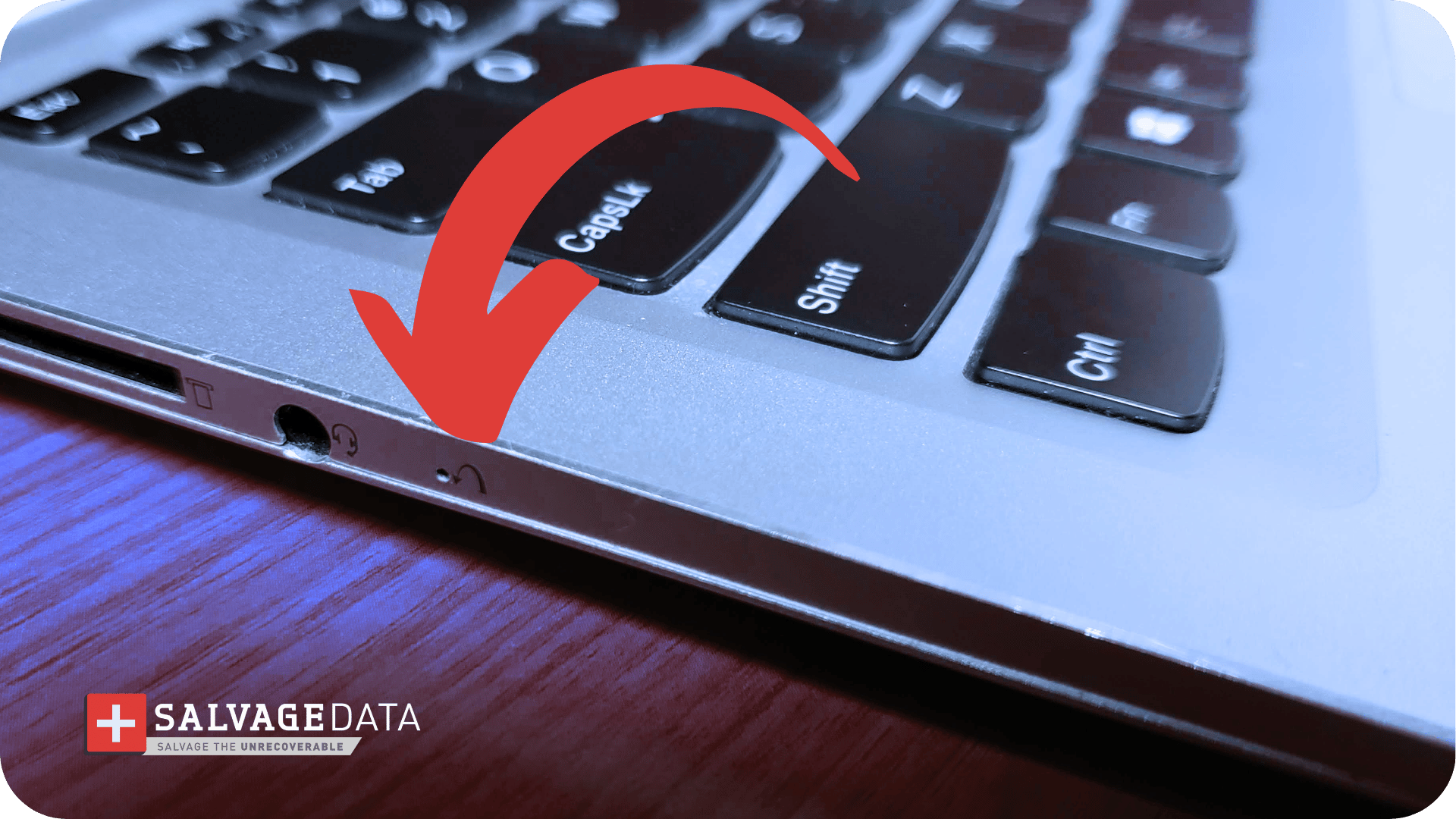
Many Lenovo laptops have a small pinhole button called the Novo button, usually located near the power button or on the side of the laptop. This button can help you access recovery options when the regular power button doesn't work.
- Make sure the laptop is completely off
- Use a paperclip to press the Novo button
- Select "Normal Startup" from the menu that appears
If the hard reset worked, your Lenovo laptop should boot normally. Consider running a hard drive health check to make sure no underlying issues caused the freeze.
Solution 3. Boot into BIOS or recovery mode
If your Lenovo laptop won't turn on or can't load Windows, you might be able to access the BIOS or Windows Recovery Environment to fix the problem.
How to enter BIOS on a Lenovo laptop:
- Turn off the laptop completely
- Press the power button, then immediately start tapping F2 or F1 (ThinkPads often use F1)
- If that doesn't work, try the Novo button method described earlier and select "BIOS Setup."
Once in BIOS, check that your hard drive or SSD is detected. If the BIOS doesn't recognize any storage device, your drive may have failed, which means you’ll need to contact data recovery services for your Lenovo laptop.
How to access Windows Recovery:
- Turn off the laptop
- Turn it on and immediately press F11 repeatedly
- If successful, you'll see the Windows Recovery Environment
- Try "Startup Repair" first, then "System Restore" if that fails
For laptops stuck in a boot loop, accessing recovery mode and restoring to an earlier system point often resolves software conflicts preventing startup.
Solution 4. Reset BIOS settings to default
Incorrect BIOS settings can prevent your Lenovo laptop from starting. This sometimes happens after a failed BIOS update or when settings are accidentally changed.
To reset BIOS to default:
- Enter BIOS using F1/F2 or the Novo button.
- Look for an option called "Load Setup Defaults," "Reset to Default," or "Load Optimized Defaults."
- Select it and confirm.
- Save changes and exit (usually F10).
If you can't access BIOS at all, the CMOS battery removal method mentioned earlier will also reset BIOS settings to factory defaults.
After a BIOS reset, your laptop should attempt to boot normally. If it still won't turn on, hardware failure is increasingly likely.
Solution 5. Fix a black screen on a Lenovo laptop that powers on
What if your Lenovo laptop won't turn on fully—the power light comes on, maybe you hear the fan, but the screen stays black? This is different from a completely dead laptop and usually points to a display or RAM issue.
First, check if it's a display problem:
- Connect your laptop to an external monitor or TV using HDMI
- Press Windows + P or Fn + F7 (varies by model) to switch display output
- If you see your desktop on the external screen, the problem is your laptop's display or its cable
Try a RAM reseat (for advanced users):
Loose RAM can prevent a laptop from completing its startup sequence. If you're comfortable opening your laptop:
- Power off completely and unplug the charger
- Remove the back panel (usually held by Phillips screws)
- Locate the RAM modules—they're thin rectangular sticks in angled slots
- Gently press the clips on each side to release the RAM
- Reseat the RAM firmly until the clips click back into place
Drain the CMOS battery:
If reseating RAM didn't help, there may be a BIOS corruption issue. The CMOS battery (a small coin-cell battery on the motherboard) stores BIOS settings. Removing it for 5 minutes and reinserting it can reset these settings to default.
This fix has a high success rate for laptops stuck on black screens. However, if you're not comfortable working inside your laptop, skip to the professional help section below.
Solution 6. When hardware failure requires professional help
If you've tried everything above and your Lenovo laptop still won't turn on, you're likely dealing with a hardware failure. Common culprits include:
- Failed hard drive or SSD: The laptop can't find a bootable drive
- Dead motherboard: No power reaches the components
- Faulty power jack: The charging port is physically damaged
- Burned-out components: Power surges or overheating caused permanent damage
At this point, DIY fixes can do more harm than good. Opening the laptop without proper tools or experience risks further damaging components and, more importantly, making your data unrecoverable.
"When a laptop won't power on due to hardware failure, the drive inside usually still holds all your data," says Kyle Ciresi, HDD recovery specialist at SalvageData. "The worst thing you can do is keep trying to force it on. Every failed boot attempt can stress a failing drive and make recovery harder."
Signs your laptop has a hardware failure:
- No response at all when pressing the power button (no lights, no sounds)
- Clicking, grinding, or beeping sounds when trying to start
- Burning smell from the laptop
- Visible damage to the charging port or power button
- The laptop worked fine before a drop, spill, or power surge
If you notice any of these signs, it's time to consult a professional. Learn more about common causes of hard drive failure to understand what might have happened.
How to recover data from a Lenovo laptop that won't turn on
Your files aren't necessarily gone just because your Lenovo laptop won't turn on. In most cases, the hard drive or SSD inside is still intact, but it just can't be accessed when the laptop is dead.
1. Remove the drive and connect it externally
If you're comfortable disassembling your laptop, you can remove the hard drive or SSD and connect it to another computer using a USB adapter or external enclosure. This works well for recovering data from a drive when the drive itself is healthy.
However, if the drive has failed (clicking sounds, not detected by other computers), do not attempt software recovery, as this can overwrite data and make professional recovery impossible.
2. Professional data recovery
For drives that are physically damaged, encrypted, or making unusual sounds, professional recovery is the safest option. SalvageData's laptop data recovery service can retrieve files from Lenovo laptops with:
- Failed hard drives or SSDs
- Water or fire damage
- Encrypted drives
- Motherboard failures where the drive is inaccessible
Our technicians work in ISO-certified cleanrooms to safely recover data without voiding your drive's remaining warranty.